Glow Spinner: Finger Draw Art
- 4.7
- Rating
- 1.00M
- Installs
- Free
- Price
 Analysis by App-foxy
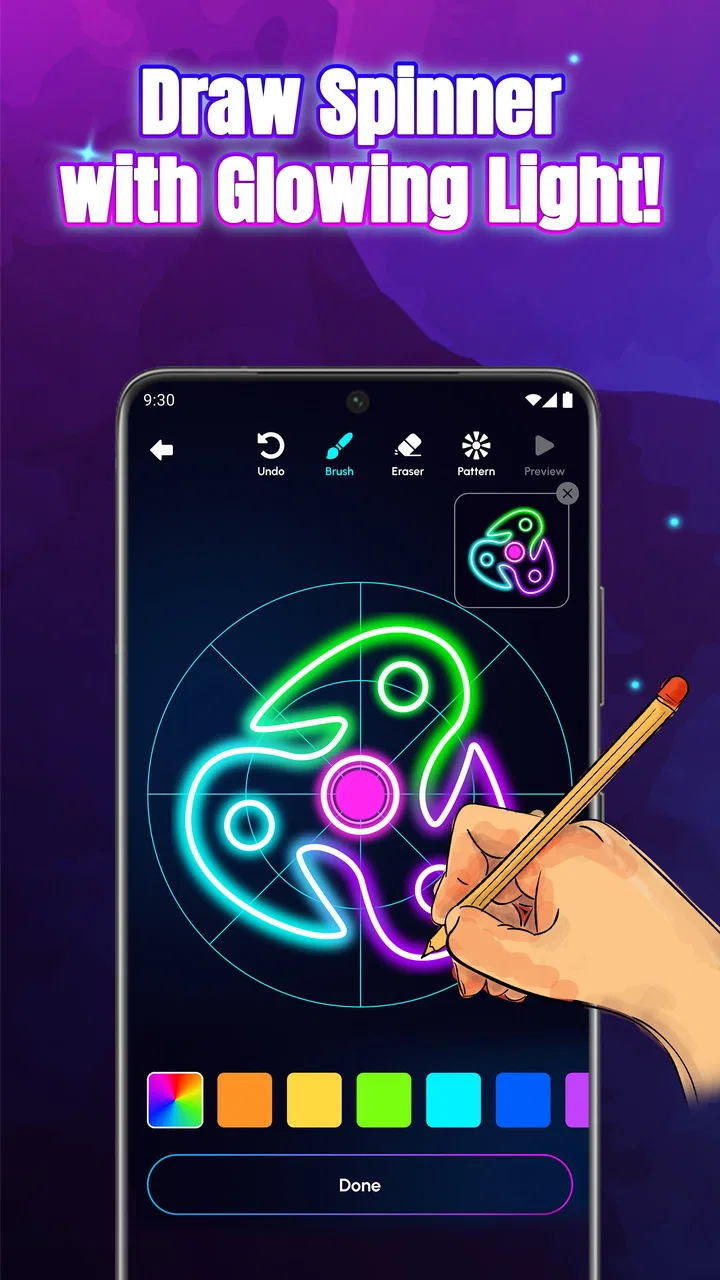
I came away from Glow Spinner: Finger Draw Art with a simple impression: it is less a traditional drawing tool and more a small, calming visual ritual. You place a finger on the screen, create glowing lines, and watch the design develop through spinning movement. That narrow focus is also its appeal. I would not open it when I need a serious illustration workspace, but I would happily use it when I want a few quiet minutes of creative play without learning a complicated interface.
As a free art and design app from Hypernova Limited, it aims at immediacy rather than depth. The idea is easy to understand, the age rating is Everyone, and the short store label, “Glow Spinner,” tells you almost everything about the mood. The fuller promise is not about producing polished artwork for professional use; it is about drawing glowing spinners, relaxing, and enjoying the movement of the result. In my experience, that distinction matters because the app works best when I stop expecting a conventional canvas.
What the drawing experience feels like in practice
The first useful thing to understand is that the app’s creative process is based on repetition and motion. A simple finger gesture can become more interesting when the spinner turns it into a symmetrical or radiating pattern. Instead of carefully placing every detail, I focus on the rhythm of the stroke: where I begin, how quickly I move, and whether I repeat a gesture with intention. The result feels closer to making a visual echo than sketching a still-life.
You May Also Like

 Blood Strike: 2.5 Anniversary
Blood Strike’s Loadouts Turn Every Drop Into a Tactical Gamble
A close look at Blood Strike’s custom loadouts: how fast access to signature weapons reshapes its battle royale rhythm, rewards preparation, and narrows the gap between fights.

 Pandora - Music & Podcasts
Pandora’s Music Is Easy to Start, but Harder to Recover
Pandora’s strength is its low-effort path from a seed to a station. Its weak spot is how much confidence it asks you to place in connection, setup, and quiet recovery.

 8 Ball Pool
 Is Built on Rivalries, Rematches, and Routine
A close look at the rivalries, rematches, shared routines, and unanswered safety questions that turn a quick pool match into a persistent mobile community.

 Samsung Music
’s Quiet Strength Is Playing What You Already Own
Its reach comes less from spectacle than from dependable access to a personal library. That simplicity is both the app’s strongest retention engine and its ceiling.

 AccuWeather: Weather Radar
AccuWeather Review: A Quick, Clear Forecast for Everyday Decisions
For everyday plans, the best forecast is the one you can understand quickly. AccuWeather makes rain timing, radar, and local conditions easy to act on, with a few trade-offs.

 Hill Climb Racing
Why Hill Climb Racing Still Turns Crashes Into One More Run
A tiny car, a bumpy hill and one more upgrade: Hill Climb Racing keeps resurfacing because its simple chaos makes every near-miss feel personal.
More From Our News Desk



That makes the app approachable for people who usually avoid drawing applications. You do not need steady hands or knowledge of layers, brushes, perspective, or color theory to get something attractive on screen. A rough line can become part of the charm because the spinning effect gives it a decorative character. I found that especially useful when I wanted to experiment without judging every mark as if it were supposed to become a finished illustration.
The strongest evidence of its appeal is how quickly it turns a tiny action into a visible pattern. In a normal sketching app, a beginner may spend several minutes trying to make a clean shape. Here, the visual treatment does much of the expressive work. The app rewards curiosity: draw a short curve, try a longer sweep, change direction, and see how the composition responds. That immediate feedback is more important than a long feature list for this kind of experience.
It also works well as a short break app. I can imagine opening it while waiting for a meeting, winding down after work, or giving a child a simple creative activity that does not require a tutorial. Because the central action is so direct, there is little mental overhead. The app does not ask me to plan a complete project before I begin; it lets the project emerge from a few gestures.
Why the spinner format changes the way you draw
A normal freehand canvas encourages control. I usually think about outlines, proportions, and whether a line is going exactly where I intended. A spinner-based canvas shifts that mindset toward composition. I pay more attention to the center, the balance between empty and bright areas, and the way repeated movement fills the screen. That is a meaningful difference from ordinary finger-painting apps, where the drawing remains tied closely to the path of my fingertip.
This format is particularly good for discovering patterns accidentally. A movement that looks unremarkable on its own can become a striking ring or burst after repetition. I found it more satisfying to make several small experiments than to spend a long time refining one image. The app encourages a gallery of quick ideas rather than a single precious masterpiece, which keeps the pressure low.
There is also a useful distinction between drawing for expression and drawing for communication. If I need a diagram, a handwritten note, a logo draft, or an accurately shaped object, this is the wrong tool. If I want a glowing abstract image that feels lively and decorative, the spinner approach is much better suited. That trade-off is not a flaw by itself, but new users should know what kind of creativity the app supports.
Small techniques that make the results more interesting
My first practical tip is to begin with restraint. Filling the screen immediately can make the final pattern feel crowded, while a few deliberate strokes often leave enough space for the glow to stand out. I get better results by making one short mark, watching how it repeats, and then adding a second stroke only where the composition feels empty. This is more effective than drawing continuously and hoping the pattern sorts itself out.
A second technique is to vary speed rather than relying on one repeated motion. Slow, controlled gestures and quick sweeps can create noticeably different visual energy. I also like alternating between curved and straighter movements, because a design made from only one type of stroke can quickly become predictable. These experiments are simple, but they give the app more depth than its one-touch premise initially suggests.
A third useful workflow is to treat each session as a study in balance. I look at the brightest or busiest area and ask whether the rest of the image supports it. If the design feels heavy on one side, I add a lighter gesture rather than another large stroke. This makes the experience surprisingly close to learning basic composition, even though the app itself remains playful and uncomplicated.
For children, I would use the app as an open-ended activity rather than asking for a particular picture. Prompts such as “make something that looks like a flower,” “try a storm,” or “create a pattern with a calm center” give direction without turning the session into a test. For adults, the same approach can make it a useful screen break: set a small personal challenge, make a few designs, and stop before the activity becomes repetitive.
Where the app is strong, and where it starts to feel limited
The biggest strength is accessibility. The app’s concept is understandable almost immediately, and its visual payoff arrives quickly. That combination makes it suitable for casual users who may find full drawing suites intimidating. I also appreciate that the experience is not built around technical vocabulary. I can concentrate on movement and appearance instead of searching through menus to understand which tool I should select.
Its tone is another advantage. Many art apps make me feel that I should be productive, precise, or ready to share a finished result. This one is more forgiving. A messy experiment can still look intentional once it becomes a glowing pattern. That makes it a good choice for relaxation and for people who want creative activity without the pressure of improving their drawing skills.
The app has also reached a substantial audience, with over 500 thousand installs and a 4.7 average from around 3.9 thousand ratings. Those figures suggest that the simple concept connects with many users, although popularity does not change the central question: whether you enjoy abstract finger-drawn motion. Someone looking for a broad art toolkit may still find it too focused despite the positive reception.
The meaningful weakness is limited creative range. The same spinner-based interaction that makes the app welcoming can eventually make sessions feel similar. Once I understand how my gestures translate into repeated glowing shapes, the surprise decreases. I can continue experimenting with stroke placement and rhythm, but I am still working inside one main visual idea. Users who want painting, photo editing, typography, animation, or detailed illustration will outgrow it quickly.
That limitation affects the app’s value over longer sessions. I think it is better in short visits than in extended drawing marathons. After making several designs, I may want more control over brushes, layers, canvas dimensions, or editing. Those are normal expectations in established drawing alternatives, and this app should not be judged as though it were trying to replace them. Its strength comes from doing one thing lightly, not from covering every art workflow.
There is also a creative trade-off in the automatic visual treatment. It can make weak gestures look attractive, but it can also hide the difference between a carefully planned design and a lucky accident. If I am trying to develop precise hand control, a conventional drawing app gives clearer feedback because every line remains visibly connected to my movement. Here, the transformation is more entertaining, but less educational for traditional sketch practice.
Device compatibility is straightforward for many Android users because the app supports Android 7.0 and later. I would still approach it with realistic expectations on older phones: glowing visual effects and continuous motion can feel less comfortable on a device with a small screen or limited responsiveness. That is not a claim about a specific performance problem; it is simply why I would test the experience briefly before planning to use it as a regular creative tool.
How it compares with ordinary drawing alternatives
Compared with a basic finger-painting app, this is more distinctive and more forgiving. A conventional canvas gives greater freedom, but it also exposes every uncertain line. Glow Spinner turns a simple gesture into a decorative result, so it is the better choice when I want a quick visual reward. The conventional option wins when I need to preserve the exact path of a drawing or build an image step by step.
Compared with a professional illustration app, the difference is much larger. Full drawing software is preferable for layers, detailed corrections, structured projects, and export-oriented work. It may take longer to learn, but that complexity is justified when accuracy matters. I would choose this app instead when setup time is the problem and the goal is relaxation rather than production.
It also differs from coloring apps. Coloring gives me a defined picture and a calmer, more deliberate pace, while the spinner format asks me to create the structure myself. If I want a guided activity with a predictable result, coloring is probably better. If I want to see an abstract design emerge from my own movements, this app offers more spontaneity.
For sharing finished artwork, I would be cautious about treating it as a complete design pipeline. Its best role is generating quick visual ideas or personal experiments. I could use one of those ideas as inspiration for a more capable art program, but I would not choose this as my only tool for a client project, a detailed illustration, or a carefully edited social graphic.
Who should use it, and who should skip it
I recommend it to casual creators, families looking for a simple screen activity, and anyone who enjoys abstract visual patterns. It is especially well suited to people who say they are “not good at drawing” but still want to make something. The app lowers the cost of starting, and that can be more valuable than an advanced brush collection when the real obstacle is hesitation.
It is also a good fit for short relaxation sessions. I would use it after a demanding task, during a quiet break, or when I want a creative activity that does not require a finished goal. The glowing motion gives the hands something to do while the mind shifts away from more demanding work. That makes the app feel closer to a digital doodle pad with a visual twist than to a serious art studio.
I would skip it if my priority is precision, learning traditional drawing technique, editing existing images, or building multi-step artwork. I would also look elsewhere if I need a wide selection of tools or expect every session to feel substantially different. The free price makes trying it easy, but free does not automatically mean it is the right fit; the real decision depends on whether the focused spinner format sounds enjoyable to you.
The Everyone content rating makes it a comfortable recommendation for a broad audience, especially when an adult wants to introduce a child to simple digital creativity. I would still encourage younger users to experiment with shapes and color rather than chase a perfect result. The app is most rewarding when the process stays playful.
Version, accessibility, and everyday expectations
The current version is 1.1.0, and the app is free to use. It was released on November 25, 2025, so I see it as a relatively young product rather than a mature replacement for long-established creative suites. That context shapes my expectations: I judge it primarily on whether the central interaction is enjoyable and clear, not on whether it offers the depth of software built for professional artists.
In a realistic everyday scenario, I might open it while waiting for a train, make three designs based on different movement speeds, and close it once one pattern feels balanced. I would not begin with the goal of creating a masterpiece. I would begin with a small prompt, keep the first few marks sparse, and use the result as a visual reset. That workflow plays directly to the app’s strengths and avoids the frustration of demanding more control than it is designed to provide.
One question many users will have is whether they need drawing experience. In my view, no. Experience may help you make more deliberate compositions, but the app’s visual repetition gives beginners enough support to produce interesting results. Another likely question is whether it can replace a normal drawing app. My answer is also no: it complements a drawing toolkit rather than replacing one, because its identity depends on a focused transformation of finger gestures.
If you are wondering how long it stays interesting, I would describe the appeal as replayable but not unlimited. The experimentation comes from changing the gesture, speed, spacing, and balance of the design. Once those possibilities stop feeling fresh, a broader art app will offer more room to grow. That is not a reason to dismiss it; it is a reason to use it in the right-sized sessions.
My final verdict is positive, with a clear condition. This is a relaxing creative toy, not a full drawing studio. Hypernova Limited has built an app around a narrow idea and made that idea approachable, visually rewarding, and easy to recommend to casual users. I like the way it turns uncertain finger movements into patterns that feel more polished than the original gesture.
I would install it for quick abstract experiments, a low-pressure activity with children, or a few minutes of visual decompression. I would not install it as my main art application, and I would choose a conventional canvas whenever accuracy, editing, or long-term project work matters. If you enjoy watching simple marks become glowing, spinning compositions, the free download is worth trying. If you want control over every pixel, you will be happier with a more capable alternative.
FAQs for Glow Spinner: Finger Draw Art
01What is Glow Spinner: Finger Draw Art?
Glow Spinner: Finger Draw Art is a creative app that allows users to draw mesmerizing art using a spinning platform and their fingertips. The app offers vibrant colors and unique brushes to create stunning visual effects, perfect for anyone interested in digital art or looking for a relaxing creative outlet.
02How easy is it to use Glow Spinner: Finger Draw Art?
Glow Spinner: Finger Draw Art is designed with user-friendliness in mind, making it accessible to both beginners and experienced digital artists. The intuitive interface allows users to start drawing with minimal guidance, while the app's tutorials and hints provide additional support for those who need it.
03What features are available in Glow Spinner: Finger Draw Art?
The app offers a variety of features, including multiple brush types, color palettes, and the ability to adjust the spin speed of the canvas. Users can save their creations, share them on social media, and even use them as wallpapers. The app frequently updates with new features and enhancements.
04Is Glow Spinner: Finger Draw Art free to use?
Glow Spinner: Finger Draw Art is available as a free download with optional in-app purchases. While the core features can be enjoyed without spending money, additional brushes, colors, and effects may require a purchase. A premium version is also available for users seeking an ad-free experience.
05Can Glow Spinner: Finger Draw Art be used offline?
Yes, Glow Spinner: Finger Draw Art can be used offline. Once downloaded, users can enjoy creating art without needing an internet connection. However, features like sharing artwork on social media or accessing online tutorials will require internet access.
Pros
- Easy-to-use interface for all ages.
- Variety of colors and brushes available.
- Supports offline use for convenience.
- Encourages creativity and relaxation.
- No intrusive ads during use.
Cons
- Limited export options for creations.
- No social media integration for sharing.
- Occasional lag on older devices.
- In-app purchases can be pricey.
- Lacks advanced editing tools.

Glow Spinner: Finger Draw Art
Gallery